

Customizing Your Forms
NoSavvy comes with three built-in forms that handle communication for you: the Pre-Visit Confirmation, the Crew Checklist, and the Post-Job Feedback.
As an Owner, you can customize these forms to fit your specific business needs. You can toggle standard questions on or off and add your own custom tasks or questions.
How to Access Form Settings
Log in to your NoSavvy dashboard.
In the sidebar menu, click Form Settings.
You will see three cards, one for each form type.
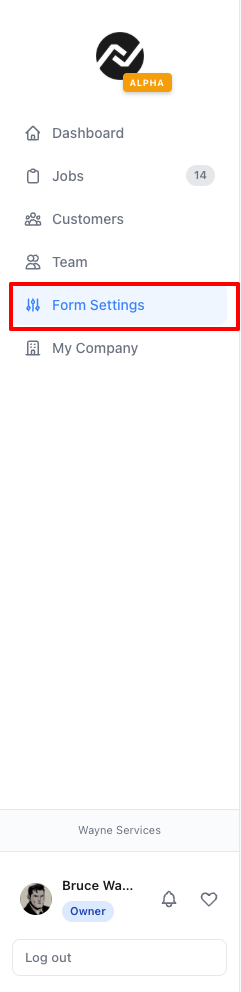
Note: Only users with the Owner role can edit form settings. Managers and Techs cannot change these.
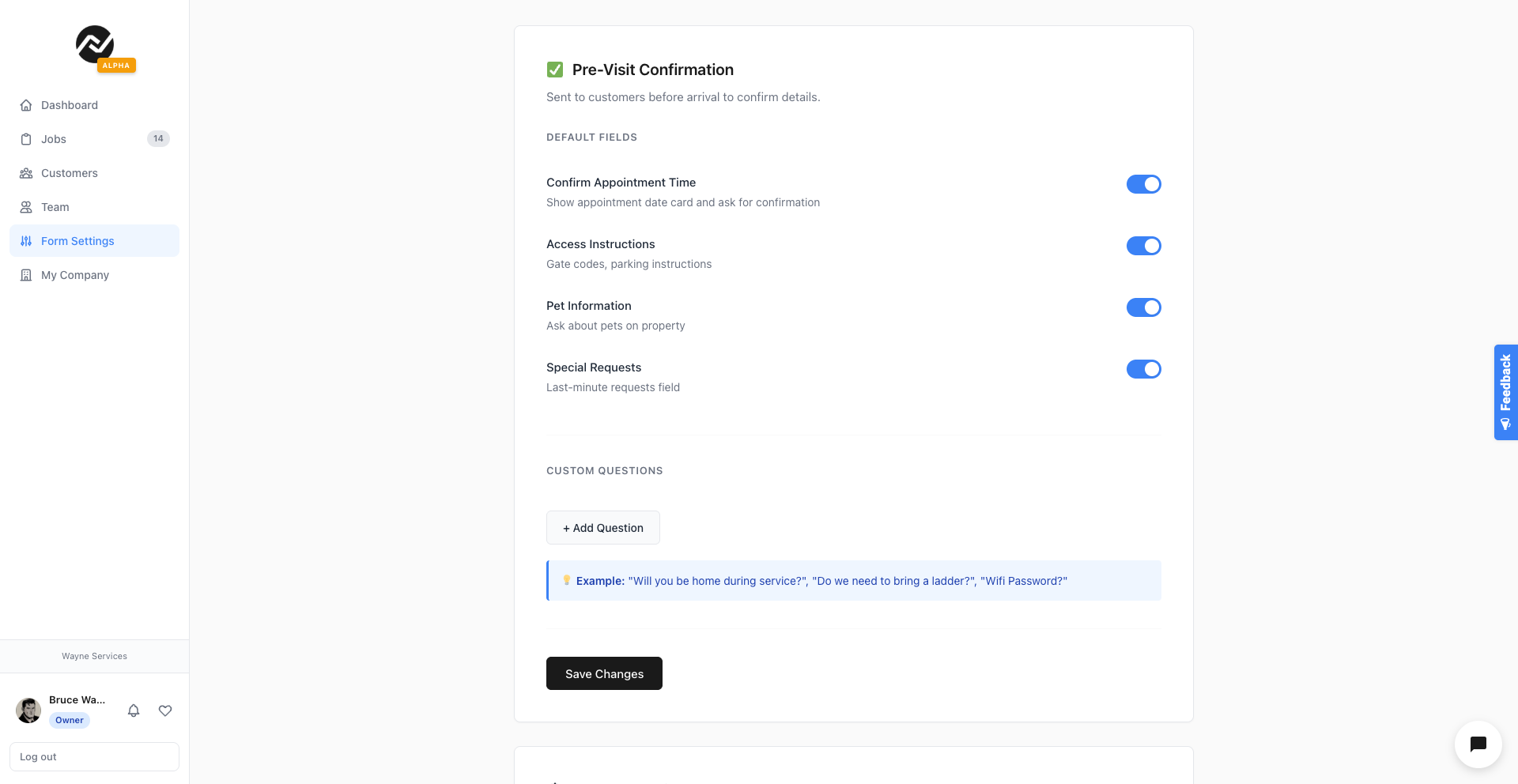
1. Pre-Visit Confirmation
Audience: Your Customers (sent before the job).
This form is used to confirm the appointment time and gather access details (gate codes, key locations) so your team isn't locked out.
Customization Options:
Default Fields: You can toggle the following on or off:
Confirm Appointment Time(Highly Recommended)Access Instructions(e.g., "How do we get in?")Pet Information(e.g., "Any pets on site?")Special Requests
Custom Questions: You can add up to 5 custom questions.
Example: "Is the alarm system currently armed?" or "Please upload a photo of the area."
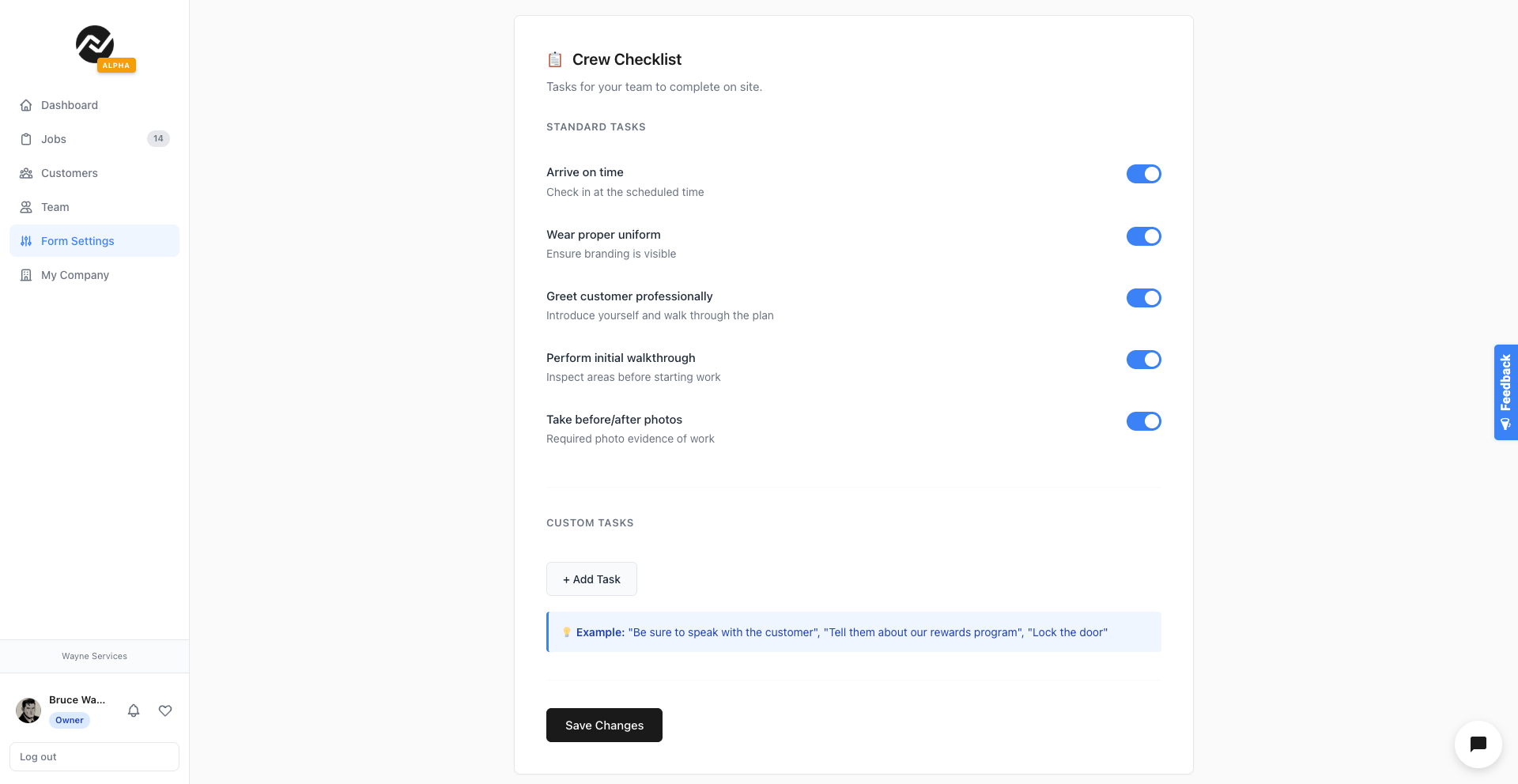
2. Crew Job Checklist
Audience: Your Technicians (used during the job).
This is the list of tasks your crew must complete before they can mark a job as "Completed."
Customization Options:
Standard Tasks: Toggle common tasks like:
Arrive on timeWear proper uniformTake before/after photos
Custom Tasks: You can add up to 10 custom checkbox items.
Example: "Lock the back gate," "Check thermostat settings," or "Leave a business card."
Tip: Keep this list focused. If you add too many tasks, technicians might rush through them. Focus on the 3-5 most critical quality checks.
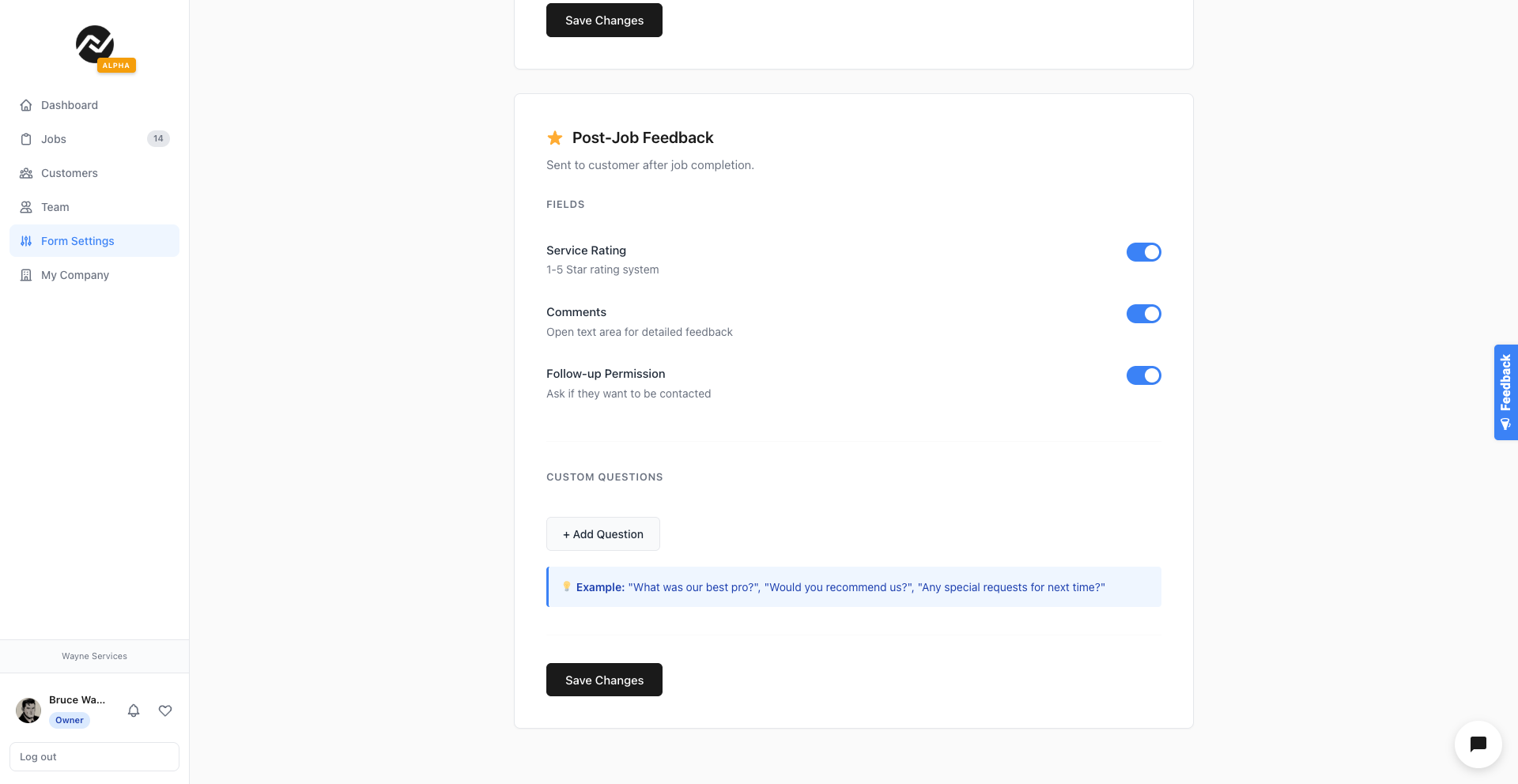
3. Post-Job Feedback
Audience: Your Customers (sent after the job).
This form collects ratings and reviews to help you monitor quality.
Customization Options:
Default Fields:
Service Rating(Excellent / Good / Okay / Not Good)Comments(Open text area)Follow-up Permission("Can we contact you?")
Custom Questions: You can add up to 5 custom questions.
Example: "Was the technician polite?" or "How did you hear about us?"
Frequently Asked Questions
If I change a form, does it update existing jobs?
Yes. Form settings are global for your company. If you add a new checklist item today, it will appear on all jobs immediately, including ones you created yesterday.
Can I have different forms for different jobs?
Currently, NoSavvy uses one standardized set of forms per company to keep things simple. If you need drastically different checklists for different services (e.g., "Cleaning" vs. "Landscaping"), many users utilize the Multi-Company feature to create separate workspaces for each service type.
Who can see the answers?
Pre-Visit Answers: Visible to the Owner, Manager, and the assigned Tech (inside the Job Details page).
Checklist Submissions: Visible to the Owner and Manager.
Feedback: Visible to the Owner and Manager. Negative feedback alerts the Owner immediately.